Secure browser
Protect exam content and limit user access to specific functions and websites




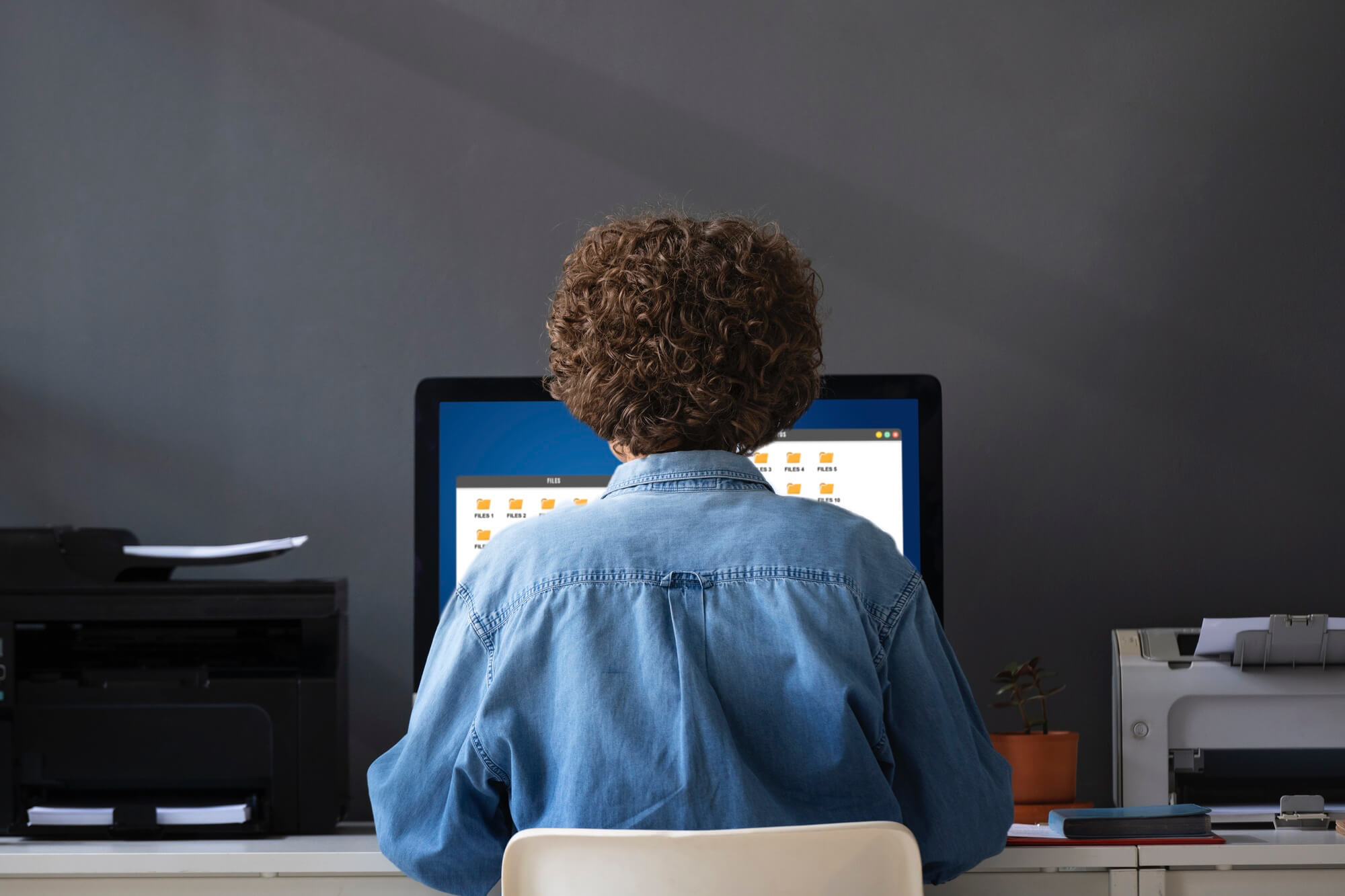


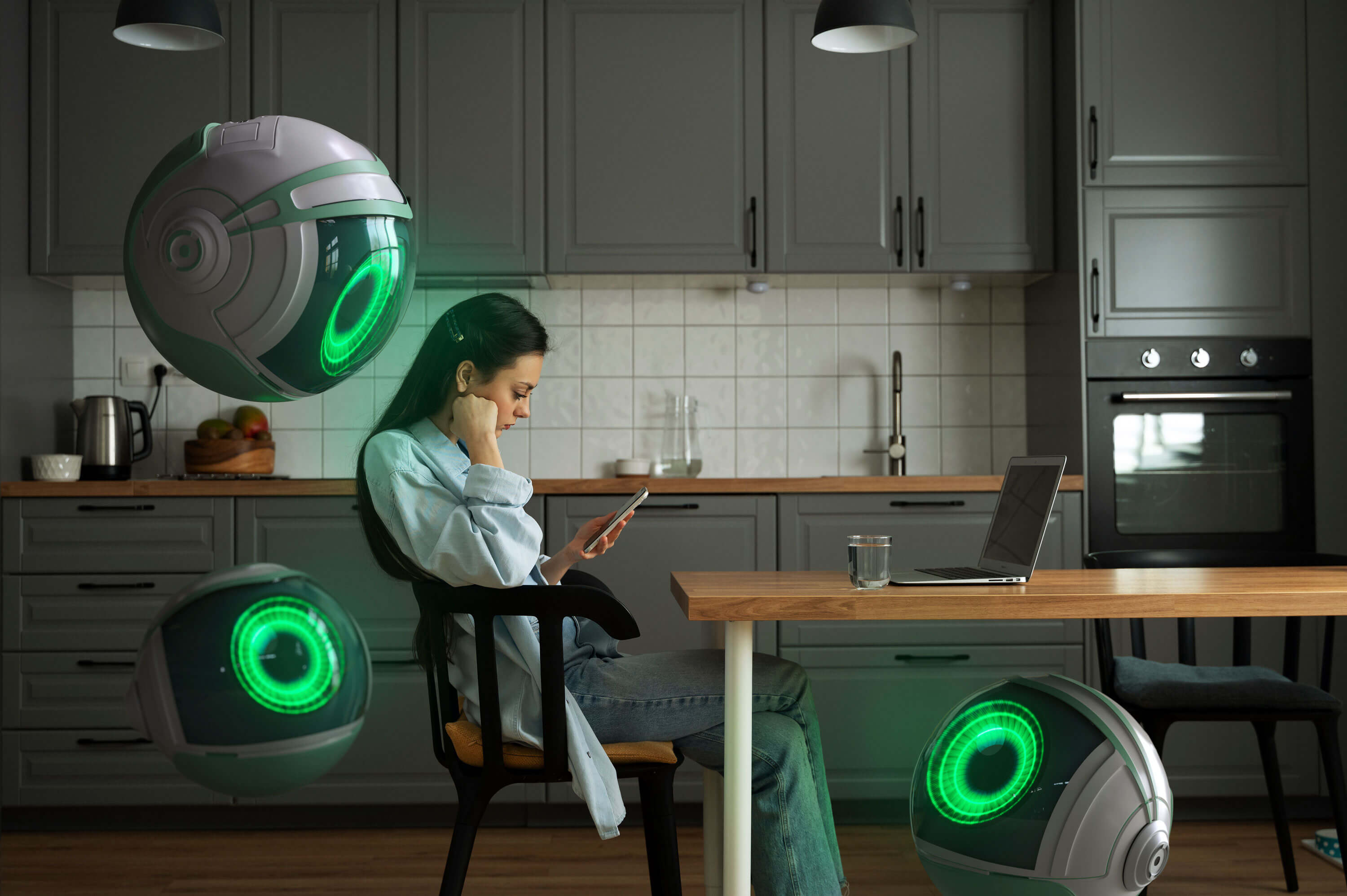
During the system check, the browser detects if it’s running inside a virtual machine. If so, the exam cannot begin.
Use case: A candidate opens proctoring in a blank virtual machine (VM) without any additional software. In the proctoring system, all that's visible is the screen from the VM that was opened in the Google Chrome host machine, and the candidate is free to partake in unfair assessment activities. To prevent this, during the system check, we determine whether it's a virtual environment and the candidate cannot start the assessment.

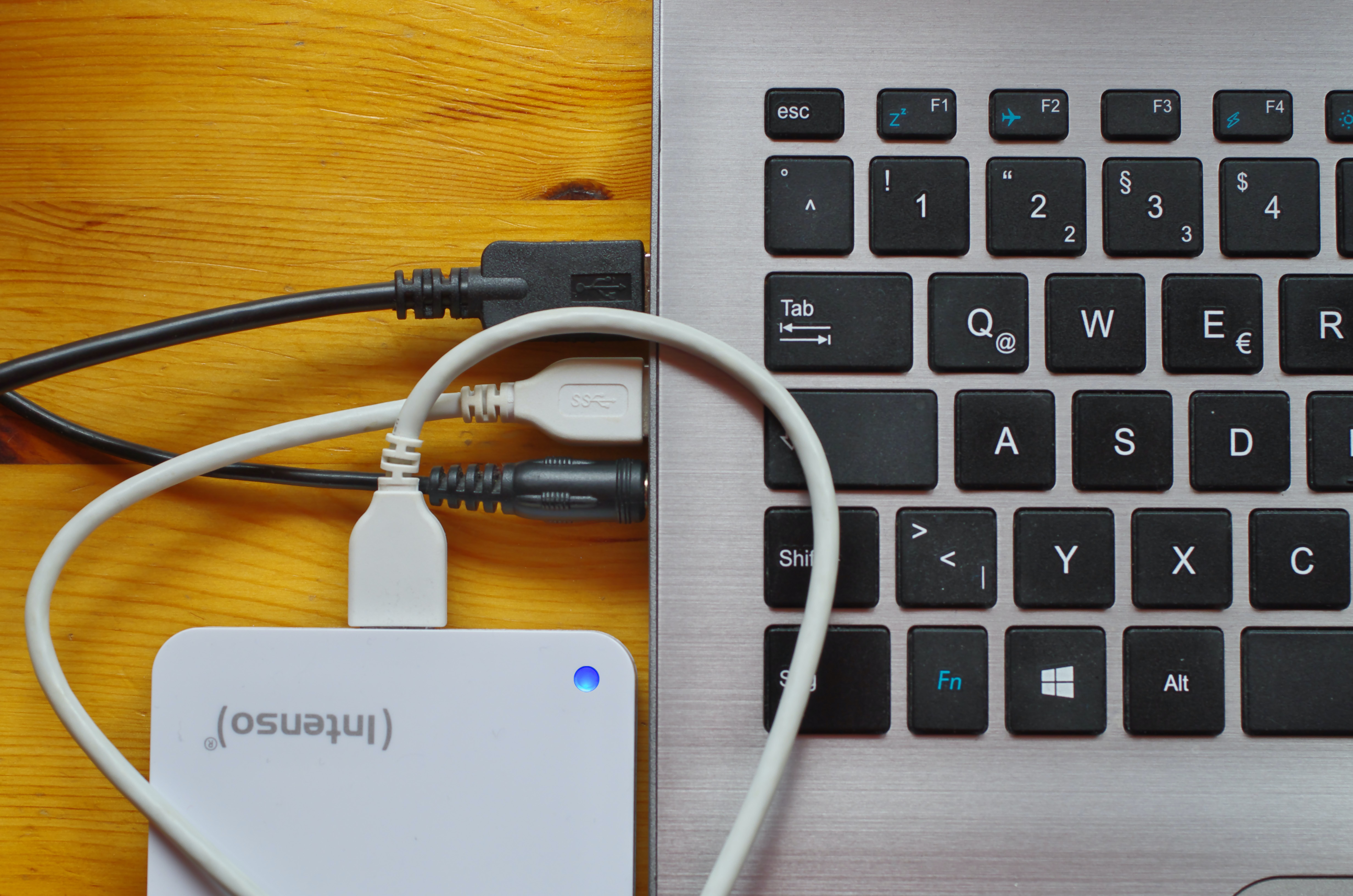
The proctor obtains the list of devices during the system check stage. During the assessment, the system detects whether new devices are connected or old devices have been disconnected and sends an alert.
Use case: Before or during the assessment, a candidate decides to change his keyboard and gives it to their friend. The system displays information on the keyboards and other devices on the video report page.
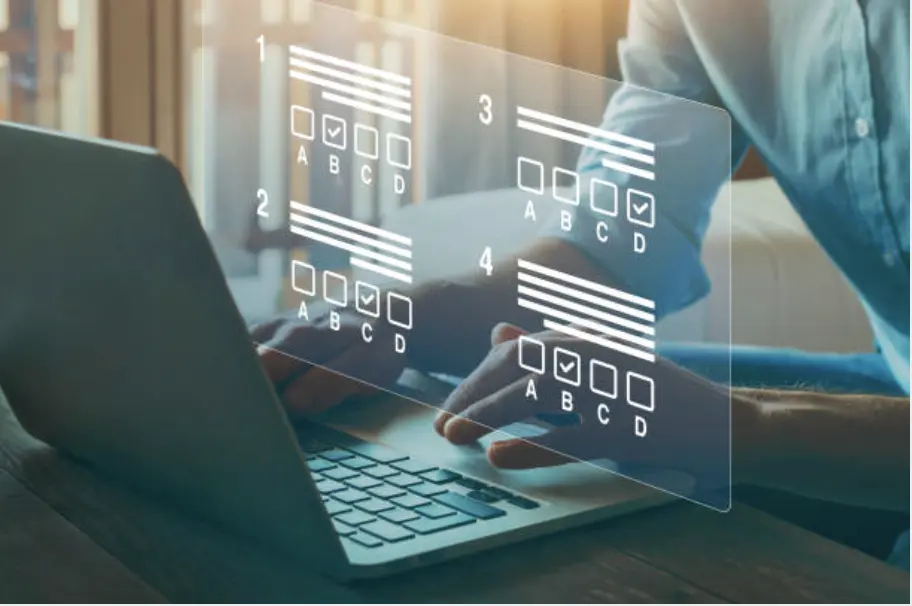
Locks down the browser interface and limits user access to specific functions and websites.
Use case:
A student tries to minimize the exam window to check their notes in another app. Kiosk mode prevents this by locking the screen into full-screen mode with no option to minimize, close, or switch.

Secure Browser opens with forced full screen if a high security level is chosen. Windows cannot be minimized due to the Kiosk mode.
Use case:
Before starting the exam, a student connects a second monitor to mirror their screen for someone else to help them. The Secure Browser detects the extra display and blocks the exam from launching until it's disconnected.
Ctrl+C, Ctrl+V, Ctrl+X, Ctrl+Z, Ctrl+Y
Ctrl+A, Ctrl+F, Ctrl+P, Ctrl+S, Ctrl+O
Alt+Tab, Ctrl+Tab, Windows+Tab, Command+Tab
Windows+D, Windows+L
Command+Space,
Command+Option+Esc
Ctrl+B, Ctrl+I, Ctrl+U
Ctrl+Left/Right Arrow, Ctrl+Backspace/Delete
Command+B, Command+I, Command+U
Option+Left/Right Arrow,
Option+Delete
Ctrl+T, Ctrl+Shift+T,
Ctrl+WCtrl+R, Ctrl+L, Ctrl++(Zoom In),
Ctrl+-(Zoom Out)
Command+T, Command+Shift+T,
Command+R, Command++(Zoom In), Command+-(Zoom Out)
The Secure Browser detects the extra display and blocks the exam from launching until it's disconnected.
Detects displays, connected in mirroring mode in Windows and MacOS and prevents proceeding to exam
Stops students from opening unauthorized apps or browsers like Chrome, Firefox, or messaging tools during the exam. If a blocked app is running, the system automatically closes it or prevents the exam from starting.
Keeps the exam window locked in full-screen mode. Students cannot minimize it, move it, or change its size - making it harder to hide cheating tools or switch to other tasks.
Disables browser inspection tools and developer consoles to prevent students from viewing or changing exam content. It also blocks screenshot apps like Lightshot or using the print screen key to capture exam material.
Tracks when students move their mouse outside the exam window or switch to another tab or app. The system logs these actions and sends alerts for suspicious behavior.