February 2025 update
February 25, 2025


We’ve improved link management in promotional banners, making it easier to direct learners to relevant content. Administrators can now create links directly from the banner properties page that open the Catalog with specific filters or search prompts applied—such as selected course collections—ensuring learners see only the most relevant courses. Additionally, we’ve added multi-domain support. Internal links pasted into the banner properties are now automatically converted into a domain-friendly format, allowing seamless access to shared resources across different domains within the same tenant.
Course-wide and individual activity progress are now displayed.
Course due dates help learners manage deadlines.
Activities are marked as Not Started, In Progress, or Completed.
Failed gated activities are clearly shown.
Media block content is now editable directly in the composition editor.
Activities can be renamed by double-clicking their name in the composition tree.
Resizable panes allow for better workspace customization.
Warning, Quote, and Instructor blocks now fully support formatting and links.
Users can set a custom file name when uploading attachments
We’ve introduced an easier way to grant all users within a tenant access to selected courses for self-enrollment. This eliminates the need to manually assign access to company units, groups, or individual users, making course availability management more efficient.
Implementation of Security mode page. A new information page has been added to notify learners before the exam that it will be taken securely. This page informs them that certain applications will be automatically closed, and features such as hotkeys, along with the ability to close or minimize the application, will be restricted until the exam is completed.
Blocking forbidden processes during exams. In the high or medium security modes, Secure Browser automatically closes applications that could potentially be used for cheating, such as messengers, screen sharing apps, video conferencing tools, and more. The system includes a default list of forbidden processes, but the exam organizer can add other applications as needed. Applications are closed automatically before the learner reaches the exam page. During the exam, the system continuously checks for any running applications against the forbidden list and blocks any detected processes.
New grading panel for assignments
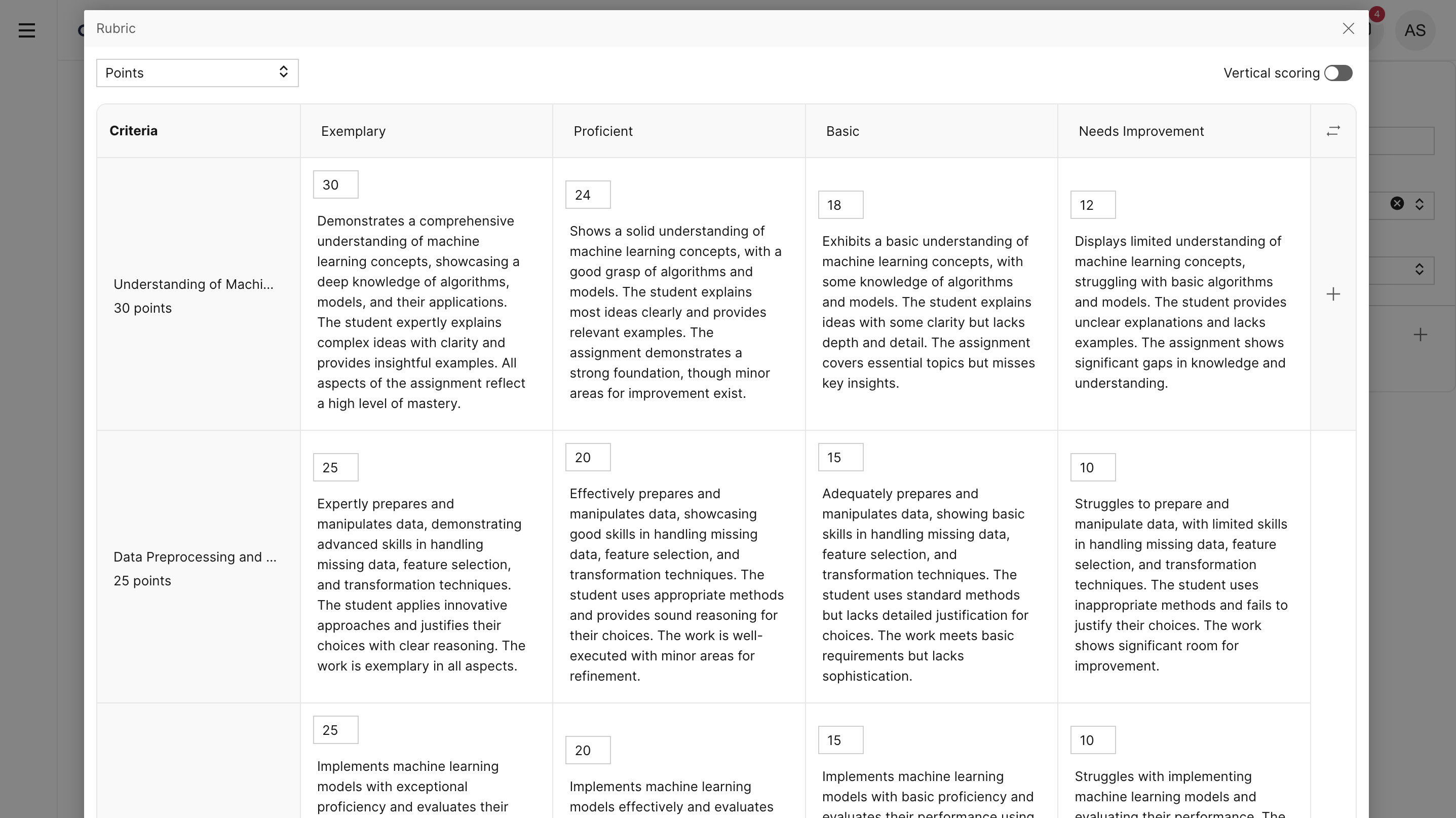
Authors can now create rubrics for any assignment, either manually or automatically. They can define the number of criteria and evaluation levels, as well as provide additional instructions for rubric generation. The full text of the assignment instructions is also taken into account when generating rubrics. Once a rubric is created and added to an assignment, it can be used when grading learners' responses on that assignment.
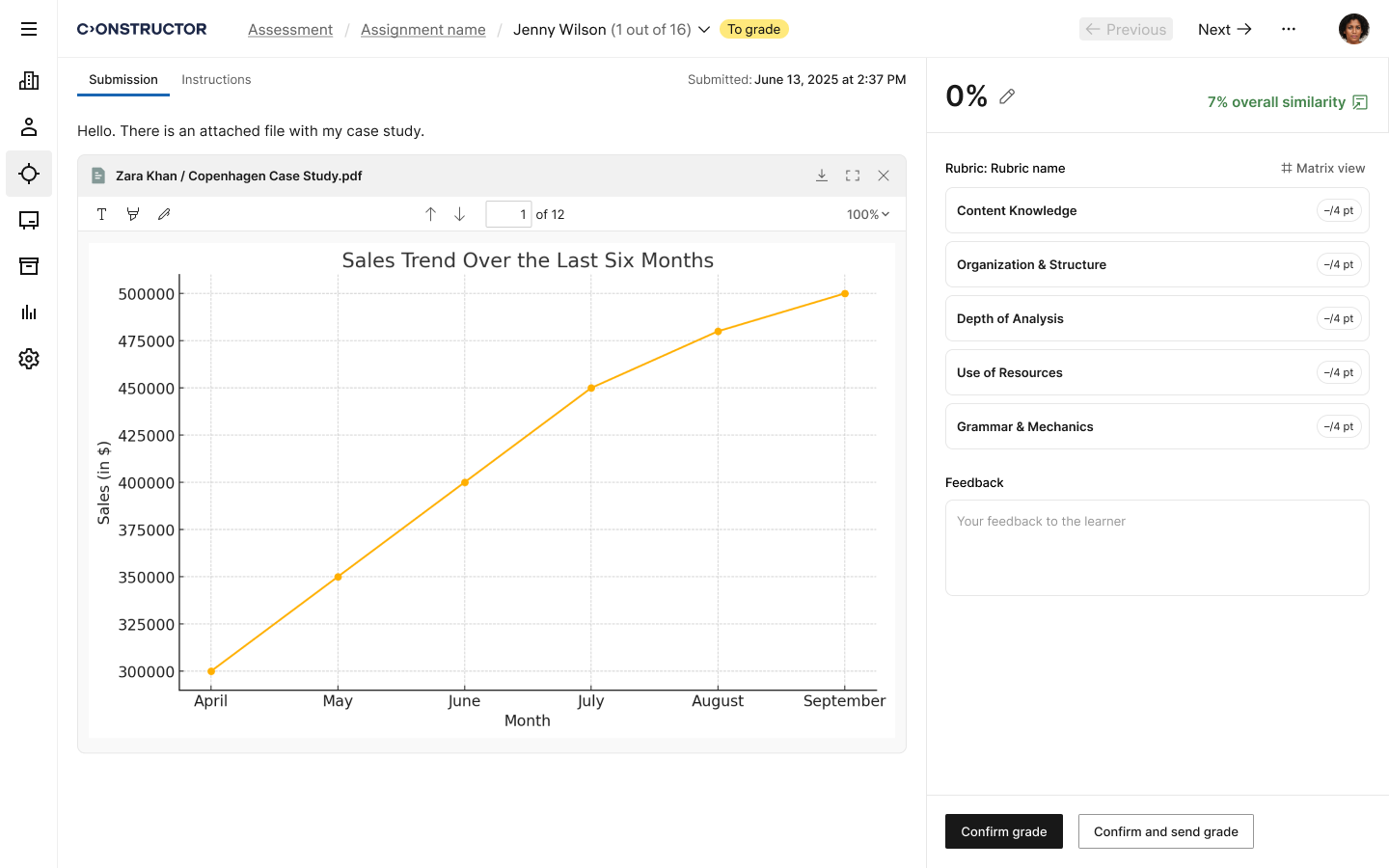
If a rubric is added to an assignment, the grading page will display an interface for grading based on that rubric. (image: Grading page with rubrics)Instructors can select a level for each rubric criterion. (image: Choosing level of criteria)For scoring, a vertical display format or matrix view can be used, depending on the user's preference. (image: Matrix view for rubrics)The final score will be calculated automatically, taking into account the selected levels and the weight of each criterion. However, instructors can manually enter the final grade if they choose. The system also allows feedback to be provided in the form of a test or an attached file.